Mandatory Prerequisites Before You Start the 2026/2027 Upload
Attempting the O’Level upload on the JAMB portal via phone without the correct credentials is like showing up at the CBT centre without your registration slip—you simply won’t get in. For the 2026/2027 admission cycle, JAMB’s validation engine is stricter on data integrity, especially regarding the National Identification Number (NIN) linkage. If your NIN isn’t actively verified against the Profile Code you generated during the 2026 UTME/DE registration, the portal will reject the session immediately, often without a clear error message. Confirm this linkage now by dialing *55019*1*NIN# on the line tied to your profile; if it returns a mismatch, resolve it at a JAMB-accredited centre before proceeding.

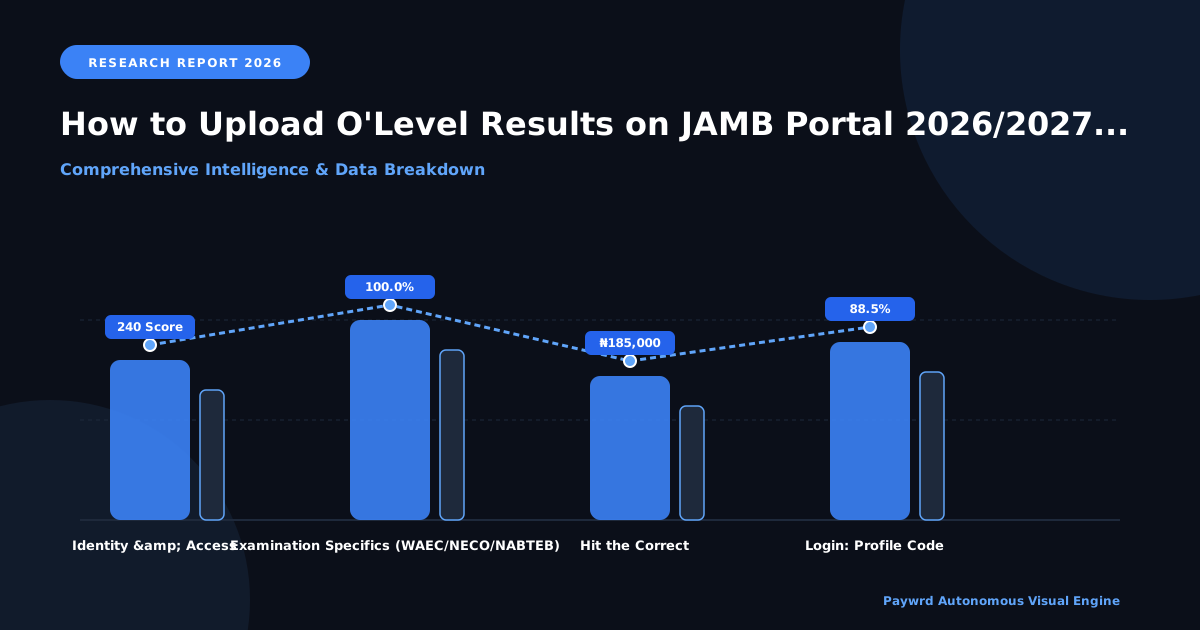
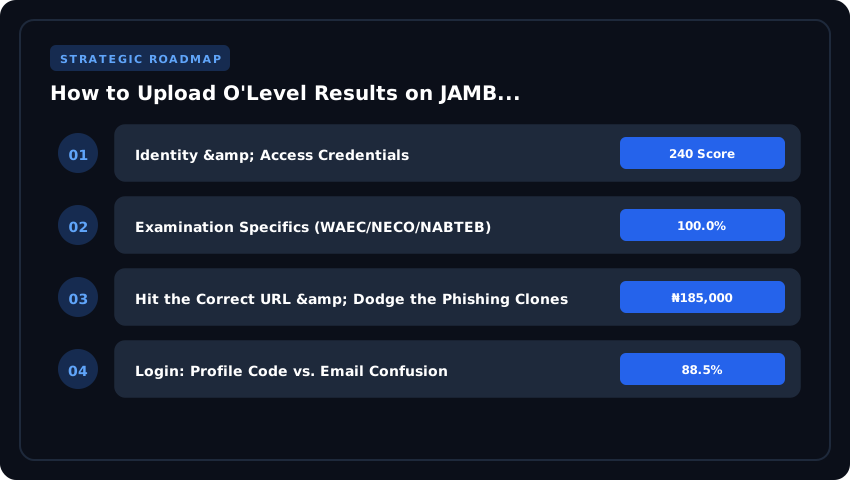
Identity & Access Credentials
- Verified NIN & Profile Code: The 11-digit NIN must match the Profile Code (usually starting with
2026...or similar format for the current cycle) used for your 2026 registration. No exceptions. - Active Registered Phone Number & Email: You need access to the exact SIM and email address used during the 2026 JAMB registration. The portal sends a One-Time Password (OTP) to this line for every critical action—login, profile edit, and result submission. If that SIM is lost, do a “Welcome Back” SIM swap at your provider’s office before you start; JAMB does not support OTP rerouting to new numbers on the fly.
- JAMB Profile Password: Have your secure password ready. If forgotten, use the “Forgot Password” link on the JAMB eFacility portal to reset it via the registered email before you sit down to upload.
Examination Specifics (WAEC/NECO/NABTEB)
Mobile browsers are unforgiving with session timeouts. You have roughly 10–15 minutes of idle time before the portal logs you out. Hunting for a scratched-off PIN mid-session is the fastest way to lose your progress. Prepare the following for every sitting you intend to upload (first and second sitting if combining):
- Examination Type: Select correctly—WAEC (May/June or GCE), NECO (June/July or GCE), or NABTEB.
- Examination Year: The exact year you sat (e.g., 2026, 2026, 2026).
- Examination Number: The 10-digit (WAEC/NECO) or specific format (NABTEB) number. Cross-check against your original photocard or statement of result; a transposed digit invalidates the upload.
- Scratch Card PIN & Serial Number: Critical for WAEC and NECO results not pre-loaded on the JAMB CAPS. Even if you checked the result online previously, the JAMB portal often requires the physical card credentials (PIN + Serial) to verify the result against the examining body’s database in real-time. NABTEB typically uses a Token/PIN system. Buy these cards (₦1,500 – ₦2,000 depending on vendor) from authorized dealers like WAEC Zonal Offices, NECO State Offices, or trusted cyber cafes before you begin.
Finally, ensure your scanned result documents (if uploading manually via the “Upload O’Level” feature rather than PIN verification) are clear, legible PDFs or JPEGs under the 2MB file size limit. Blurry snapshots from a shaky hand will be rejected by the manual verification team at the institution level, forcing a re-upload later. Get it right the first time.

Step-by-Step: Uploading via Mobile Browser (Chrome/Opera Mini) 2026
Let’s get straight to the click-path. On mobile, screen real estate is your enemy, so we’re optimizing for thumb reach and load speed. I recommend Chrome with “Desktop Site” toggled off for the initial login, or Opera Mini in “Extreme” data-saving mode if your network is flaky—just know Opera sometimes compresses the CAPTCHA image into unreadability. If that happens, switch to Chrome immediately.
1. Hit the Correct URL & Dodge the Phishing Clones
Type e-facility.jamb.gov.ng directly into the address bar. Do not Google “JAMB portal”—sponsored ads lead to fake clones harvesting passwords. Bookmark the legitimate HTTPS URL once it loads. You’ll land on the Unified Tertiary Matriculation Examination (UTME) / Direct Entry (DE) login screen. Pinch-zoom slightly if the “Email” and “Password” fields render too small; fat-finger errors here lock the account for 15 minutes.
2. Login: Profile Code vs. Email Confusion
Enter the registered email address linked to your JAMB profile, not your Profile Code. The Profile Code (the 10-digit number sent via 55019) is for registration, not portal authentication. Input your password. If you’ve forgotten it, use the “Forgot Password” link—it sends a reset link to that same email. Do not attempt to guess; three failed attempts trigger a hard lock requiring a support ticket at support.jamb.gov.ng.
3. Navigating the Mobile Dashboard to ‘O’Level Upload’
Once inside the dashboard, the hamburger menu (☰) top-left is your navigation hub. Tap it > Admission Services > O’Level Result Upload. On narrow screens, the submenu often collapses; scroll down if “Admission Services” isn’t immediately visible. You’ll see a warning banner: “Ensure you have your Result Checker PIN/Serial Number ready.” Take it seriously.
4. The 2026 Game-Changer: ‘Fetch Result’ Automation
This is where 2026/2027 candidates win back hours. You now have two paths:
- Fetch Result (WAEC/NECO/NABTEB): Select your Exam Body (e.g., WAEC May/June), Exam Year (2026), and Exam Number. Enter the Scratch Card PIN and Serial Number. Tap Fetch. The portal communicates directly with the exam body’s API. If your details match perfectly, your nine subjects and grades auto-populate in seconds. Zero manual typing. Zero typo risk.
- Manual Entry: Reserved strictly for GCE/Private candidates (Nov/Dec diets) or exam bodies not yet integrated with the JAMB API. You select subjects from dropdowns and grades manually. Avoid this unless forced. A single “B3” entered as “B2” flags a mismatch during admission screening.
Pro Tip: If “Fetch Result” returns “Record Not Found” but you’re certain the details are correct, wait 10 minutes and retry. The exam body’s API sometimes throttles under peak load (evenings 7 PM–10 PM WAT). Do not switch to Manual Entry out of frustration—you’ll create a data conflict that requires a JAMB office visit to resolve.
5. Final Submission & PDF Evidence
Review the fetched grid. Confirm every subject and grade matches your physical slip. Tap Submit. The screen generates a Confirmation Slip. Tap “Download PDF” and save to Google Drive or Files app immediately. Screenshot the “Upload Successful” toast message with the timestamp. That PDF is your lifeline during clearance at your admitted institution—print two copies.
Using the Official JAMB Mobile App for 2026/2027 Result Upload
The JAMB mobile application remains the most stable route for candidates uploading O’Level results via phone in 2026. Unlike the browser portal—which often chokes under peak traffic—the native app maintains a persistent session with the JAMB backend, drastically reducing the “session expired” errors that plague Chrome or Safari users. For the 2026/2027 cycle, you must download the verified 2026 release (version 4.2.x or higher) directly from the Google Play Store or Apple App Store. Search explicitly for “JAMB e-Facility” published by the Joint Admissions and Matriculation Board. Avoid third-party APK sites; sideloaded versions frequently lack the updated security certificates required to handshake with the CAPS database, leaving your upload stuck in “Pending Verification” indefinitely.
Biometric Login vs. Password Login on the App
The 2026 app update enforces a stricter authentication hierarchy. While your Profile Code and Password remain the primary credentials, the app now prioritizes Biometric Login (Fingerprint/Face ID) once you have successfully authenticated on that specific device for the first time. This is not optional convenience—it is a security hardening measure. If you attempt to log in on a new phone using just the password, the system will trigger a One-Time Password (OTP) sent to your registered email and phone number linked to your NIN. You cannot bypass this device registration step. Pro tip: Complete your first login on your personal device at home using Wi-Fi before you head to a cyber cafe or attempt the upload on a borrowed phone. Moving the session between devices mid-process is the fastest way to corrupt your application state.
Camera Permissions and the OCR Scanning Reality
Let us clear the air on the most asked question: The 2026 JAMB app does not support OCR (Optical Character Recognition) scanning of physical result printouts. Despite the camera permission request appearing in your OS settings, that permission is strictly reserved for the “Profile Photo Update” and “NYSC Mobilization” modules. When you navigate to the O’Level Upload tab, you are presented with a structured data entry form—Exam Type (WAEC/NECO/NABTEB), Exam Year, Exam Number, Center Number, and the Scratch Card PIN/Serial Number. You must type these in manually. Do not waste time trying to photograph your WAEC certificate; the upload button will remain inactive until every field passes server-side validation against the WAEC/NECO databases. Ensure your scratch card is valid (not used up to the 5-check limit) before you start typing.
Syncing App Upload Status with CAPS Portal
The moment you hit “Submit” on the app, the transaction hits the Central Admissions Processing System (CAPS) in real-time. You do not need to log into the browser portal to “confirm” it. However, verification is asynchronous. The app will display “Awaiting Verification” immediately. This status syncs bidirectionally: if you log into caps.jamb.gov.ng on a desktop five minutes later, you will see the identical status. Verification typically takes 24–72 hours during the 2026 peak season (August–October). If the status flips to “Verified” on the app, your admission eligibility updates automatically. If it shows “Error/Discrepancy”, the app now provides a specific error code (e.g., ERR-004: Exam Number Mismatch)—screenshot that code and head to a JAMB CBT centre for correction; you cannot edit a submitted entry on the app yourself.
- Download Source: Play Store / App Store only (Publisher: Joint Admissions and Matriculation Board).
- Login: Password + OTP for new devices; Biometric for trusted devices.
- Input Method: Manual form entry only—no OCR/scanning support in 2026.
- Sync: Real-time with CAPS; “Awaiting Verification” is the standard intermediate state.
Resolving Common 2026 Upload Errors on Phone
You have the prerequisites ready, the browser is open, and then—boom. A red error banner ruins your morning. Do not panic, and absolutely do not rush to a cybercafe yet. Ninety percent of mobile upload failures in 2026 are local data mismatches or session glitches you can fix from your bed. Here is the field manual for the four most common blockers.
1. “Invalid Examination Number” or “Result Not Found”
This is the classic “fat finger” error. On a small phone screen, mistaking a ‘0’ (zero) for ‘O’ (letter) or missing a hyphen in your WAEC/NECO number is routine. Before you retype, switch your keyboard to “PC mode” or landscape view—it forces larger keys and visible character counts. Cross-reference the number physically written on your certificate or photocard, not the screenshot in your gallery. If the number is 100% correct but the portal insists “Result Not Found,” the issue is likely the Exam Year or Exam Type dropdown. Ensure you selected “WASSCE (May/June)” vs “WASSCE (Nov/Dec)” or “NECO SSCE (Internal)” exactly as printed. A mismatch here routes the query to the wrong database bucket.
2. Name/DOB Mismatch: JAMB Profile vs. O’Level Certificate
JAMB’s 2026 validation engine is ruthless on identity parity. If your JAMB profile reads “Adebayo John Olu” but your WAEC certificate reads “Adebayo Olu John,” the upload will hard-reject. Middle name order, missing initials, or a Date of Birth discrepancy (e.g., 01/01/2026 on JAMB vs 01/01/2026 on WAEC) triggers an instant lockout. Fix: You cannot edit this on the upload page. You must log into your JAMB profile via the JAMB e-Facility portal (desktop mode on Chrome works fine on mobile) and apply for a “Correction of Data.” This costs ₦2,500 per field via Remita. Do not attempt the upload again until the correction reflects on your CAPS dashboard.
3. Server Timeout / “Service Unavailable” During Peak Hours
Between 9:00 AM and 2:00 PM WAT, the JAMB server groans under traffic. Mobile networks add latency. If you hit a 504 Gateway Timeout or “Service Unavailable,” do not refresh repeatedly—that queues multiple sessions and gets your IP temporarily banned. Instead:
- Clear only the JAMB site cache: Chrome > Site Settings > Clear Data (do not clear all browser data or you lose saved passwords).
- Switch from 4G/5G to a stable Wi-Fi hotspot or vice versa; sometimes the carrier’s NAT is the bottleneck.
- Attempt the upload between 11:00 PM – 4:00 AM. The success rate jumps to near 99% in that window.
4. Exhausted Scratch Card Attempts (WAEC/NECO Token Purchase via USSD)
WAEC and NECO allow a maximum of 5 result checks per PIN/Serial Number combo. If you burned through them checking on the WAEC site earlier, the JAMB portal will return “Invalid PIN/Serial” or “Access Denied.” You do not need a physical card anymore. Buy a verification token instantly via USSD on the phone line linked to your NIN/Bank:
- WAEC: Dial
*944*4#(MTN/Airtel/9mobile/Glo) > Select “Buy Token” > Pay ~₦800–₦1,000 via airtime or bank debit. - NECO: Dial
*647*0#> Follow prompts for “Token Purchase” (~₦500–₦800).
The token (PIN + Serial) delivers via SMS instantly. Copy it straight into the JAMB upload fields—no cybercafe required.
Verifying Upload Success & Printing 2026/2027 Admission Slip
You have submitted the data. Now you wait—but not passively. On mobile, the verification loop is where many candidates lose visibility. Open your browser, log back into the JAMB e-Facility portal, and tap My O’Level Status on the dashboard. Do not rely solely on the SMS notification; network latency often delays those alerts by hours. The dashboard is your source of truth for the 2026/2027 cycle.
Interpreting Your O’Level Status Flags
The status column will display one of three states. Understanding them dictates your next move:
- Awaiting Verification: Your upload succeeded, but JAMB has not yet cross-referenced your details with the examination body (WAEC, NECO, or NABTEB). This is normal for the first 24–72 hours. Refresh daily.
- Verified: Green light. Your grades match the external database. This status automatically propagates to CAPS, making you eligible for consideration by your chosen institutions. Screenshot this for your records.
- Rejected: Red flag. A data mismatch exists—usually a wrong Exam Number, incorrect Exam Year, or a subject grade discrepancy. You must initiate a Correction of Data on the portal (attracting a ₦2,500 service fee via Remita) and re-upload immediately. Do not ignore this; a “Rejected” status freezes your CAPS eligibility.
Generating & Saving the JAMB Admission Letter PDF
Once your CAPS status shifts to “Admission in Progress” or “Admitted”, the Admission Letter becomes available. On your phone, navigate to Admission Letter on the left-hand menu (or hamburger menu on mobile view). Tap Print Admission Letter. The portal generates a PDF. Critical step: Do not just view it in-browser and close the tab. On Android, tap the three-dot menu > Download or Print > Save as PDF. On iOS, tap the Share icon > Save to Files > On My iPhone. Name the file clearly: JAMB_Admission_Letter_2026_[RegNo].pdf. Store it in a dedicated “Admissions 2026” folder. You will need this for physical clearance, NELFUND loan applications, and NYSC mobilization later.
Next Steps: Institution Portal Screening & CAPS Acceptance
The JAMB letter is your passport, but the institution portal is the border control. Log into your school’s admission portal (e.g., UNILAG, UI, FUTO, or your polytechnic’s site) using your JAMB Reg No. Pay the Post-UTME/Post-DE screening fee (typically ₦2,000–₦5,000) and complete the bio-data form. Upload the same O’Level results and the JAMB Admission Letter PDF you just saved.
Simultaneously, monitor CAPS via the JAMB portal. When an institution proposes admission, you will see an “Accept” or “Reject” button. You have a limited window (usually 72 hours) to click Accept. If you reject, you remain in the market for other offers, but you risk losing that specific slot. Once accepted, print the Final Admission Letter from CAPS—this is the definitive document for clearance. Your 2026/2027 journey is now officially in motion.
Critical 2026/2027 Deadlines & NUC CCMAS Compliance Notes
Hard Deadline: When the Portal Shuts Down
For the 2026/2027 admission cycle, JAMB typically locks the O’Level upload portal two weeks after the release of the last major result (usually NECO SSCE Internal). Based on the 2026 academic calendar, candidates should treat Friday, December 18, 2026 as the absolute “do-or-die” deadline. Do not wait for an official extension announcement; JAMB rarely grants them since the CAPS (Central Admissions Processing System) requires verified grades to run merit and catchment algorithms for universities, polytechnics, and colleges of education. If your result is not uploaded and verified by this date, your profile remains “Incomplete,” automatically disqualifying you from the 2026/2027 merit lists regardless of your UTME score.
The ‘Awaiting Result’ Trap: Merit vs. Catchment Implications
Registering with “Awaiting Result” (AR) gets you a registration number, but it places a hard ceiling on your admission prospects. During the 2026 CAPS runs, candidates with uploaded, verified results are ranked first on the Merit List. AR candidates are pushed to supplementary lists—often after Catchment and Educationally Less Developed States (ELDS) considerations have been exhausted. Practically, this means a candidate with a 280 UTME score but “AR” status can lose a slot to a candidate with 240 who uploaded five credits in October. If you have your WAEC or NECO result right now, upload it immediately. Keeping “AR” status is a strategic error, not a safety net.
NUC CCMAS 2026: The Non-Negotiable 5-Credit Rule
The National Universities Commission (NUC) Core Curriculum Minimum Academic Standards (CCMAS), fully enforced for 2026 admissions, mandates that every candidate—regardless of course—must possess five (5) O’Level credits at not more than two sittings. This includes English Language and Mathematics as compulsory credits. There are no waivers for “Pass” in Math for Humanities or “Pass” in English for STEM courses under CCMAS. The portal validation engine will hard-reject any upload where Math or English shows D7, E8, or F9. Before you pay for that scratch card, confirm your grades meet this baseline; uploading a failing core subject wastes your scratch card PIN and locks the subject slot for that sitting.
Combined Results (WAEC + NECO) Upload Logic
The JAMB portal supports combined results strictly on a “Two Sittings Maximum” rule. You can combine WAEC (May/June) with NECO (June/July), or WAEC with WAEC GCE (Nov/Dec), but you cannot combine three sittings (e.g., WAEC 2026 + NECO 2026 + GCE 2026). The portal logic works on Subject Mapping: you select “Two Sittings” on the dashboard, enter the first exam type/year, input subjects/grades, then repeat for the second sitting. The system aggregates the best grades per subject across both sittings. Critical Check: Ensure the Name, Date of Birth, and Gender match exactly on both certificates. A discrepancy (e.g., “Chukwuemeka” vs “Chukwu Emeka”) triggers a manual verification flag that stalls your admission processing for weeks. Use the exact name on your NIN/JAMB profile.
Strategic Final Takeaway
When evaluating How To Upload O Level Result On JAMB Portal 2026 2027 With Phone in 2026 and beyond, base your decisions on accredited institutional standards, verified return on investment (ROI), and up-to-date official guidelines. Always verify specific dates and requirements through official regulatory portals.